To build an eaForm you select New from the manage eaForms design library menu.
If the eaForms design library window is not present then go to "Extensions" and ensure that AddIn Windows is checked. And also open the window "Extensions | eaForms | Manage Form Definitions" - see Manage eaForms for more details.

When you have pressed New you will then be presented with an eaForms requesting some information about the form that is to be created. This form is shown below and the designer should:
| • | Specify a name for the form |
| • | Select any relevant MDG from the drop down list |
| • | Select the Element Type from the drop down list and if desired specify any stereotypes that should be applied at run time. |
| • | Add useful notes - these can be viewed during the design phase and, by default, will be presented as part of the tool tip for the runtime form. |

If a designer selects an MDG then the form contents will change to reflect the required imports as illustrated below.

A completed example is shown below:

Upon pressing the "Save" button the initial form is presented with a new windows form reading for editing.
You change the size of the form to show as the screenshot below:

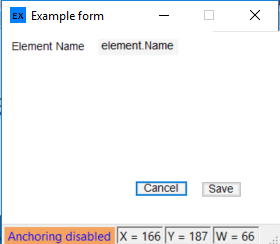
It is worth noting that by default several control are automatically added to the form. These include:
| • | "Name" label |
| • | Element.Name Textbox |
| • | "Save" button |
| • | “Cancel" button |
And at the bottom of the form is a status strip which indicate:
| • | "Anchoring ..." a button to disable control anchoring useful when placing items that need to be anchored but not whilst designer |
| • | Location of control origin - X, Y co-ordinates of selected controls |
| • | width and height of control |
| • | Type of control |
Size / adjust form as required.
Now the great point is that you can freely select and move/resize the controls on the screen.
For example drag and relocate
But this isn't really the form you want to
- increase the size and move buttons
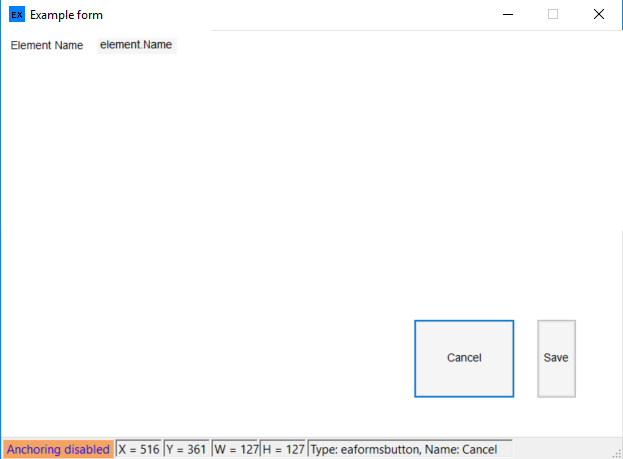
Please note: you should ensure that all of your control falls within the form boundary - any control which in part falls outside of the form boundary will not be presented on the form at run time.