The "Manage eaForms - design library" is an AddIn window, as illustrated below, which displays the current eaForms library and is the key window for managing eaForms.

If the Manage eaForms Design Library is not displayed the go to "Extensions | eaForms | Manage Form Definitions" - as illustrated below.

With the AddIn windows enabled the manage eaForms window can be dragged and docked in the same way as other EA windows as the designer prefers.
Manage eaForms contents
The main part of the window provides a summary of the eaForms that exist in the current form library.
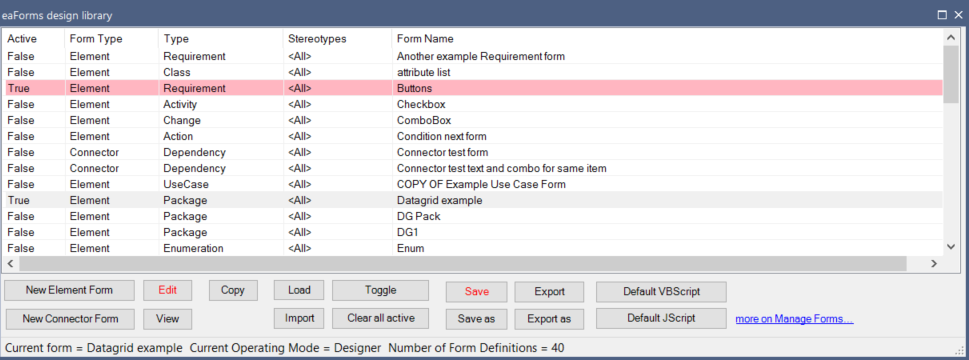
The columns indicate:
| • | Active status - set to indicate that it is to be included in any export. Note only 1 form definition filter selection (Element Type and Stereotypes) can be active. See Activate rules below |
| • | Element type - specifies the Element Type for which the form will execute; note for MDG elements the MDG is specified followed by the MDG element |
| • | Stereotypes - specifies any stereotypes that should be used to filter the selection of the desired form; there may be several forms for a single element but to be active they cannot be an overlap of stereotypes. When the Form Definition has been defined to apply to all stereotypes then "<All>" is displayed. For MDG's no stereotypes are shown. |
| • | Form name - user supplied name |
Manage eaForms functions
A range of functions are provided from:
| • | Selecting an item |
| • | Using a context menu |
| • | Using an Action button |
Selecting Item functions
| • | Click - will select the desired item |
| • | Double-Click - will bring up the relevant design document to the form |
| • | Right Click (context menu) - provides |

| 1. | Edit Form Definition - to open the Form Definition Editor for the selected item |
| 2. | Copy Form Definition - to create a copy of the currently selected Form Definition (you can use the Form Definition editor to change the name as required) |
| 3. | Delete Form Definition - will delete the Form Definition from the library |
| 4. | Toggle Active State - changes the active status for the selected item between TRUE - FALSE |
| 5. | Show Form Builder - presents the selected form in Form Builder |
Buttons
| • | New Element Form - is used to create a new eaForm for Elements with the eaForms Builder |
| • | New Connector Form - is used to create a new eaForm for Connectors with the eaForms Builder |
| • | Load - allows the designer to select / load a file as the current forms library |
| • | Import - allows the designer to select an existing Form Definitions file and add to the current set of Forms. NOTE - in importing if no associated eaForm diagram exists eaForms will automatically create an eaForm diagram to support the Form Definition |
| • | Save - save the current Form Definitions into the FD library file as specified in the settings |
| • | Save as - save the current Form Definitions into a FD library file - user will be prompted for filename |
| • | View - presents the windows form that is generated runtime form the selected Form Definition, a temporary element is created and the designer can check out the operation of the form |
(If you want to make use of any changes in any diagram ensure that you have performed an update before using View). When the runtime form is visible then the text for "View" will be coloured red.
| • | Edit - this is used to toggle the eaForms Builder form. If the form is visible then the text for "Edit" will be coloured red. |
| • | Copy - creates a copy of the currently selected Form Definition - it prefixes the Form Name with "COPY OF" and adds to the bottom of the list (you can use the Form Definition editor to change the name as required) |
| • | Toggle status - toggles the Active status for the selected item(s) - see activate rules below |
| • | Clear all active - resets the Active status for all form definitions |
| • | Export - exports the current Active set of Form Definitions to the current Runtime form definitions file, as specified in the settings and reloads the runtime form definitions |
| • | Export as - exports the current Active set of Form Definitions to the Runtime file - the designer will be prompted for filename |
| • | Default VBScript - presents a window in which to place default VBScript functions |
| • | Default JScript - presents a window in which to place default JScript functions |