eaForms provides a range of buttons that can be used to perform:
| • | Basic form functions - save, cancel |
| • | Add items - many of these are specific to the element type |
| • | Run scripts |
| • | Navigate to a form or package |
some are as illustrated in the screenshot below.

Here is a summary of buttons that are available within eaForms - which we divide into the following categories:
Standard action buttons - such as save and cancel a form
| • | Save |
Saves the contents from the current eaForm and closed the form Please note that unless explicitly stated, it does not save information relating to elements referenced)
| • | Refresh - |
| • | Cancel |
Ignores any changes that have been made to the fields displayed on the form and closes the form.
Please note that if changes have been made to elements that are access through the form e.g. from a list on the form then changes that have been made and saved will remain.
| • | Detail - this button operates in the same way as the save button rather than take the user back to the point when they opened the form it will request that the EA editor is opened. This can be useful for the occasions more information may need entering. |
Element type specific buttons - which result in the creation of attributes to the current element
Use case
| • | Add Actors |
| • | Add Pre-condition |
| • | Add Post-condition |
Class
| • | Add Operation |
| • | Add Attribute |
Create "associated" note or element buttons - which will result in the creation of an note/element that will be related to the current element
| • | Add Note to element |
| • | Add Tagged value |
| • | Add linked element |
| • | Add owned element |
| • | Add linked owned element |
Script buttons - an experimental feature where the use of a button will result in the execution of a script
| • | Save and run script |
Saves the contents of the form then runs the script that has been included with the button definition.
| • | Run Script and conditionally save |
This button will run the script associated with the button definition, and conditionally Save the contents of the form based on the result from the script.
If the script returns '0' then the form is closed else saved"
Wizard buttons - which either open a new package or a new form
| • | Next Package |
Ignores any changes to the current form and if default value is a valid GUID opens the relevant eaForm for the defined package
| • | SaveAndNextPackage |
Updates the current element from form and then if default value is a valid GUID opens the relevant eaForm for the defined package
| • | Next Form |
Save contents of form, close it and then open the given form name - the specified form must be compatible with the with the current element / stereotype
Detail - to close eaForms and access EA element detail
The next sections provide more information that may be useful when using buttons.
Control specific attributes
| • | Button Action - the action that the button will perform - as show below |
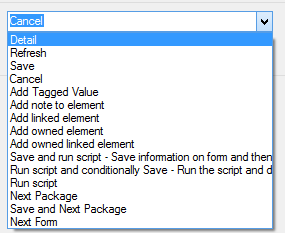
| • | Button name - the display name placed on the button |
| • | Enabled - means that the control will be presented at run-time - the default is that the control will be presented. |
| • | Anchor - this sets the reference point of the form against which the control is fixed and affects the movement of the control if the run time form is resized. Valid values consist of a combination of these letters to indicate where the control is locked |
- T (top)
- B (bottom)
- L (left)
- R (right)