To edit Form attributes the designer uses the Form Definition Editor.
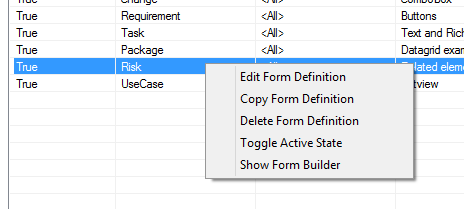
The Form Editor can be accessed from the Manage eaForms window by selecting the Form in the list and right click to access the context menu as shown below:
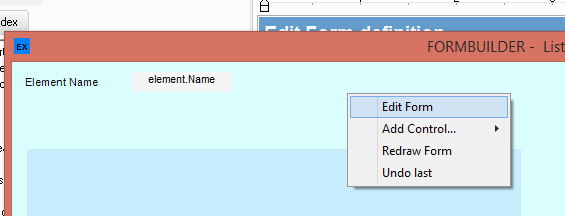
or by select on the Form (not a control) within the Form Builder and using the right click to access the context menu as shown below:
Using the Form Editor
This function allows the designer to modify some of the detailed attributes associated with the Form.
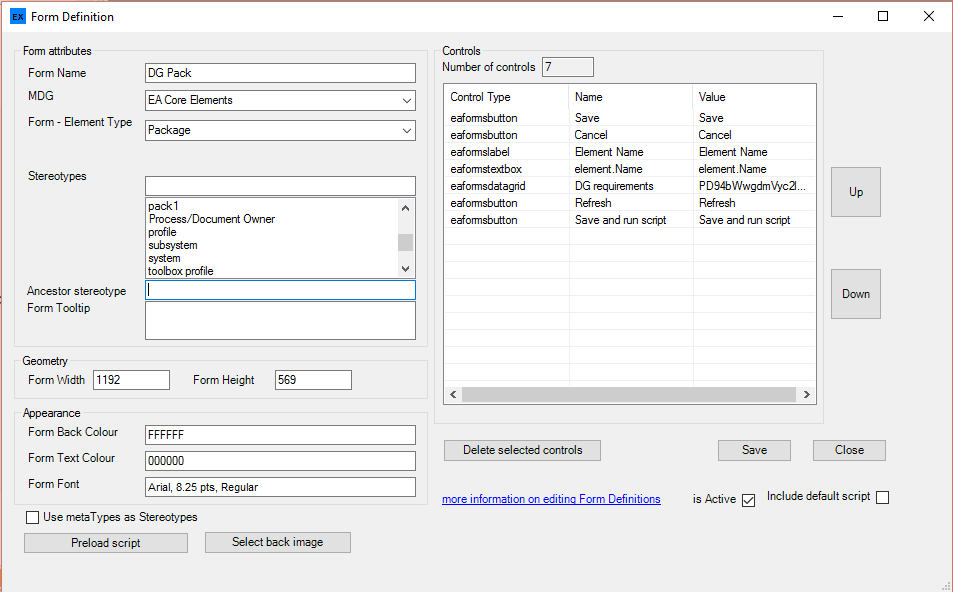
On the left hand side of the Form Editor the designer can modify information specifically relating to the Form including:
| • | Appearance |
| • | Form Type - edit the form MDG and element type as required. |
| • | Select back image - presents a dialog to select a backimage - supported image types are: |
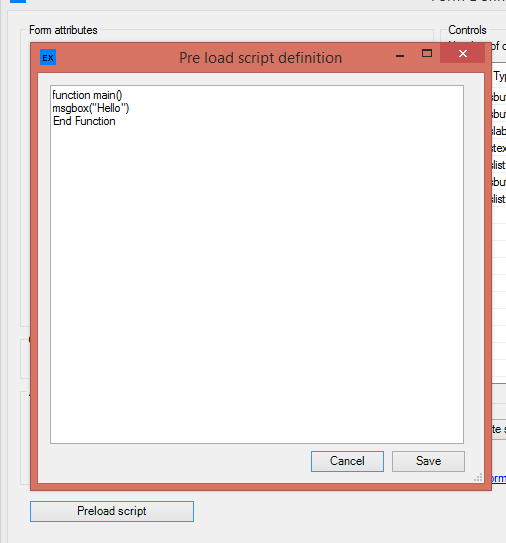
| • | Preload script - At load time the designer may wish a script to be run. A script can be added/edited by pressing the Preload Script button to open a dialog to edit the script that will be executed when the form loads |
Note, as with other scripts within eaForms:
1. They are stored within the form definition and so do not rely on the script being loaded by other means. There is no way the user can modify these scripts.
2. There are some general limitations for using scripts within eaForms - see
On the Right hand side of the Form Editor there is a list of the controls that exist on the form.
| • | Edit control - the designer can double click an entry to edit the control. |
| • | Delete one or more controls - by selecting control(s) and pressing the delete selected controls these control definitions will be removed from the Form Definition - use with care |
| • | Z-order of controls |
The Z-order can be used to define the order that controls are placed on the form and hence define the layering / Z-order. So for example if the designer wants to use a Label as a background to a set of other controls this should appear below those items that need to appear in front. The controls can be arranged within the Form Editor by using the "Up" and "Down" buttons to set the order. Note: those controls at the bottom of the list reside further back than those further forward.
Other less used items
| • | Use metaTypes as Stereotypes - this option means will controls (at present only Datagrids) will select items to be include using a match for both the stereotype and metatype of the item |
| • | Ancestor stereotype - this has been included to support the select a form definition within a certain context using the stereotype of a parent package in the tree. |
A MDG/Stereotype is defined within the form definition. At run time if there is not a match for the current package but there is a package in the ancestor tree which has a match on the ancestor stereotype then the form definition that matches package will be launched for the current package.
If there is no match either directly for the current package or in the package ancestor tree then the standard EA editor will be launched (assuming that the eaForms generic form setting is not enabled)